Importing Bank Transactions Without Damaging Your Records
Prepare, preview and check a transaction CSV before importing it, then classify the result without creating duplicates or exposing extra data.
Importing a transaction file can turn months of statement lines into a useful spending record in minutes. It can also reproduce the wrong date range, include private transactions or create a confusing second copy of data you imported before.
The solution is a controlled workflow: export only what you need, preserve the original file, preview before committing, check the result and keep a reversible route until you trust it.
This guide is about file import, not a live bank connection. The bank creates the statement file; you decide what to upload and how to classify the resulting transactions.
Decide the scope before exporting
Choose one account and one clear date range. Write them down before opening the bank's export screen. A useful import note might say:
Household current account, 1–30 June, completed transactions only.
Avoid a broad “all available history” export unless you genuinely need it. Smaller periods are easier to count, reconcile and undo. They also reduce the amount of private information copied into another system.
The Information Commissioner's Office explains the data-minimisation principle as using personal data that is adequate, relevant and limited to what is necessary (ICO data-minimisation guidance). For a household import, that means choosing the account and period deliberately rather than sharing unrelated history by default.
If the account contains both personal and household spending, decide whether it belongs in a private view, a shared view or should be separated before upload. Do not assume that every transaction in a jointly used account is automatically a shared household cost.
Export from the bank rather than rebuilding the file
Use the bank's official statement or transaction-export function and select CSV when it is available. Keep the original download unchanged in a secure location until reconciliation is complete.
Do not open the only copy, reorder columns and overwrite it before testing the import. Spreadsheet software can reinterpret dates, remove leading zeroes or change long references. If you need to inspect or adapt a file, make a working copy and preserve the source.
Record these facts alongside it:
- account label;
- export date;
- first and last transaction date;
- number of rows, if the bank shows it; and
- whether pending transactions are included.
MoneyHelper recommends using bank statements or a banking app to make budget figures realistic (MoneyHelper Budget Planner). The exported statement is the evidence here; the imported view should reconcile back to it.
Inspect the file before uploading
Open a copy as plain text or in a spreadsheet with care. Confirm that it contains a header row and recognisable fields for dates, descriptions and amounts. Check the first and last few transactions against the bank.
Look for common problems:
- the wrong account or date range;
- pending and completed versions of the same transaction;
- a balance column mistaken for a transaction amount;
- debits and credits represented in separate columns;
- dates interpreted in the wrong order;
- blank or repeated rows; and
- sensitive columns that are not needed for household analysis.
Do not paste passwords, security answers or full card credentials into the file. A normal transaction export should not require them. If an export contains information you do not need, prefer a narrower official export option where possible rather than improvising a transformation you cannot later explain.
Preview before committing
A preview is a checkpoint, not a formality. It should answer whether the file format is recognised, how many transactions can be read, which date range is present and whether any rows need attention.
Compare the preview with your import note. If you expected 42 transactions for June and the preview shows 84 across two months, stop. Correct the export or choose the right file before committing.
Treat row errors as evidence that the import is incomplete. Do not accept a partial result merely because most rows look right unless the tool clearly explains what will and will not be imported and you have a plan for the omissions.
Also check whether you have used the file before. File names alone are weak identifiers because two downloads can share a name. A safe import system can use file content to recognise an exact repeat, but you should still keep a simple household log of the account, period and import date.
Commit once, then reconcile
After a clean preview, commit the import once and wait for the result. Repeatedly pressing the button or uploading the same file again is not a substitute for checking whether the first request finished.
Reconcile the imported transactions against the source:
- Compare the imported count with the preview and export.
- Check the earliest and latest dates.
- Compare several distinctive amounts and descriptions.
- Add debits and credits for a small sample or the whole period.
- Confirm that reversals and refunds have the correct sign.
- Check that no other account's rows appeared.
For example, an export might contain a €68 grocery debit, a €24 household-supplies debit and a €12 refund. The imported record should preserve those as separate events with the refund's direction intact. Do not turn the €12 refund into another expense or silently net it against an unrelated purchase.
Keep the source file until this check is complete. The imported list is a working household view, not a replacement for the bank's statement.
Classify after the evidence is stable
Import first, reconcile second and classify third. Early classification can make a bad import look tidy before you notice missing or duplicated rows.
Start with the clearest transactions. Assign a category for purpose and a merchant for the party paid where the evidence supports it. Leave unfamiliar descriptions unclassified until somebody checks the receipt, order or banking details.
Bulk changes can save time when several transactions genuinely belong together, but select the rows carefully. A search result for one word may include a refund, a personal purchase and a shared purchase. Review the selected count and amounts before applying one category or merchant to all of them.
Classification should not overwrite the original statement description. That source text may be what lets you recognise a later duplicate, refund or disputed transaction.
Undo a bad batch rather than patching every row
If the wrong file, account or date range was imported, a batch-level undo is usually clearer than manually deleting or recategorising dozens of transactions. First confirm which import batch is wrong, then undo that batch and repeat the process with the correct source.
Keep in mind that later work may depend on the imported rows. If you have already classified transactions or used them in a household review, note what will need to be repeated. Undo should restore a clean import state, not erase the bank statement or reverse real payments.
If only one classification is wrong and the underlying transaction is correct, edit the classification instead of undoing the entire batch.
How Billum supported CSV imports at publication
At the time of publication, Billum let a signed-in user create a personal or shared spending account and upload CSV transaction files to it. The interface accepted CSV files up to 5 MB and requested a server-side preview before enabling confirmation. A preview could report the detected format, file hash, transaction count, date range and row errors, and an unimportable preview could not be confirmed.
On confirmation, Billum sent the file again with the hash from the preview so the committed content had to match what was reviewed. It recorded import batches, recognised an already imported file and allowed a user to undo a batch. Imported transactions could then be searched, filtered and classified individually or in a selected group by category or merchant.
Billum did not connect directly to a bank, fetch transactions automatically, support every possible CSV layout or guarantee that a statement description identified the right merchant. The user exported and uploaded the file and remained responsible for checking the preview and classifications.
Use the same checklist every time
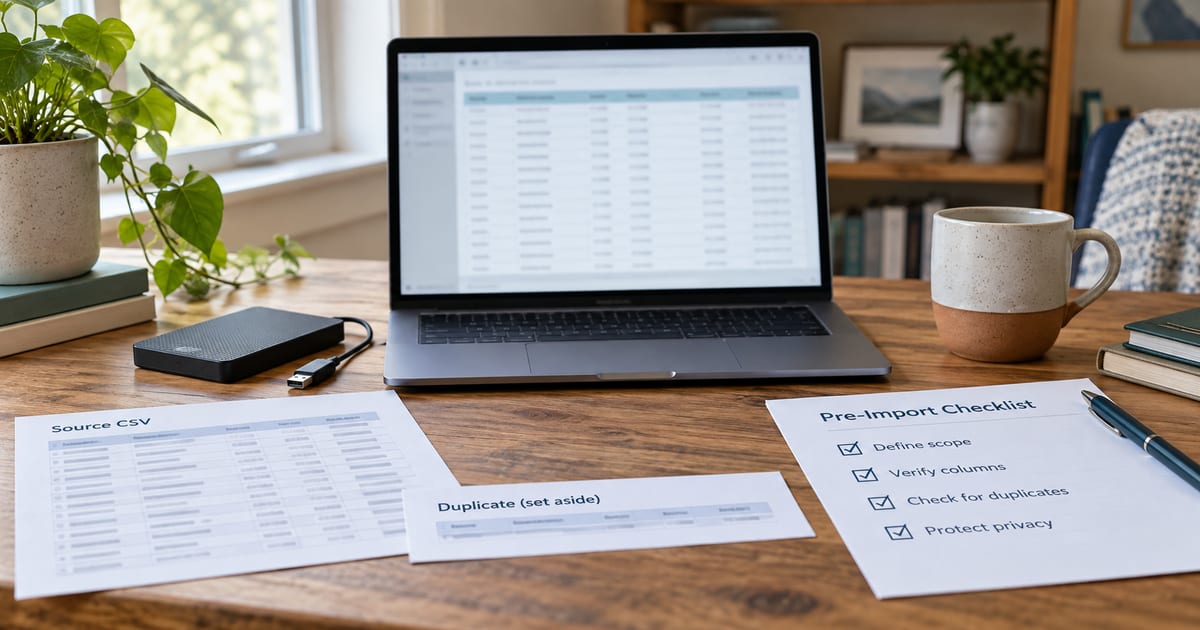
Before each import:
- Choose one account and date range.
- Export an official CSV and preserve the original.
- Inspect the columns, dates, signs and sample rows.
- Remove the file from the workflow if it contains unnecessary private data.
- Preview and compare the detected count and range with your note.
- Commit once.
- Reconcile the imported result to the statement.
- Classify only after the rows are trustworthy.
- Undo the batch if its source or scope is wrong.
A safe import is not defined by speed. It is defined by traceability: you know where the file came from, what the preview showed, what was committed and how to return to a clean state if the result is wrong.
After the rows are trustworthy, use them in the household spending reconciliation routine.